Does Chat GPT Have an Android App? Features, Download & How to Use It
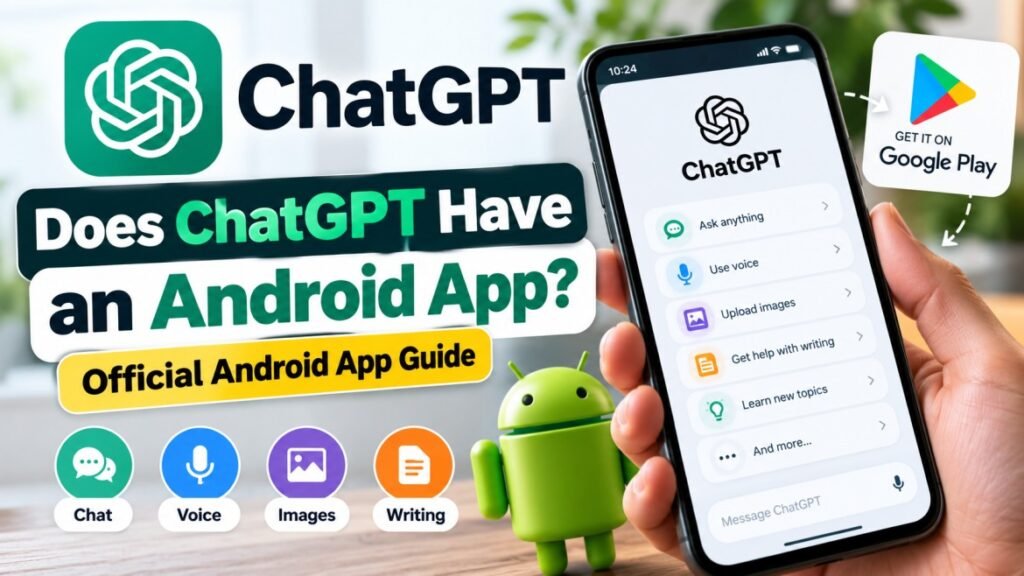
If you use an Android phone and want to access Chat GPT without opening a web browser every time, you may be wondering: does Chat GPT have an Android app? Yes. Open AI provides an official Chat GPT app for Android that can be installed through the Google Play Store. The app brings Chat GPT’s conversational AI experience to your mobile device, with features such as text conversations and voice interactions available depending on your account and app version. In this guide, we will explain where to find the official app, how to install it, what you can do with it, and what to check before signing in.
Does Chat GPT Have an Android App?
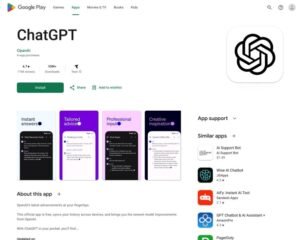
Yes, Chat GPT has an official Android app developed by Open AI. Android users can download the app through the Google Play Store and use Chat GPT directly from their phones or tablets. The official app provides a convenient way to start conversations, ask questions, get help with writing and learning, and use other features supported by your Chat GPT account.
When searching for the app on Google Play, make sure the publisher is listed as Open AI. This is important because unofficial apps may use similar names or branding but are not the official Chat GPT application. Using the official listing helps you avoid downloading an unrelated or potentially unsafe application.
The exact features available in the Android app can change over time and may also depend on your Chat GPT plan, account, device, and app version. For this reason, it is a good idea to keep the app updated and check Open AI’s official documentation when you need information about a specific feature.
How to Download Chat GPT on Android
Downloading the official Chat GPT Android app is straightforward. Open the Google Play Store on your Android phone or tablet and search for “Chat GPT.” Look for the app published by Open AI and check the app details before installing it. This helps ensure that you are downloading the official application rather than an unrelated app with a similar name.
After finding the official listing, tap Install and wait for Android to complete the download. The installation time can vary depending on your internet connection and device. Once the installation is finished, you can open Chat GPT from the Play Store or from the app icon on your device.
If you prefer to go directly to the official listing, use the Google Play link below. Avoid downloading APK files from unfamiliar third-party websites when the official app is available through Google Play.
Before installing Chat GPT, check that the publisher shown on Google Play is Open AI. This simple check can help distinguish the official application from apps that may use similar names or graphics. Open AI’s official Android FAQ also directs users to the Google Play Store for the Android app.
How to Install and Sign In to Chat GPT on Android
Once the official Chat GPT Android app has been installed, open it from your device. The app will guide you through the sign-in process. You can use the account you already use for Chat GPT, so your conversations and account access can remain connected across supported devices.
Sign In to Your Chat GPT Account
Tap the option to log in and follow the on-screen instructions. Depending on your account, you may be able to use the available sign-in method associated with your Chat GPT account. If you experience a login error, Open AI recommends checking that Google Play Store is up to date. Open AI also recommends having Google Chrome available as the default browser because the Android app may use Chrome or Brave during the login process.
What If Chat GPT Does Not Let You Sign In?
If the Android app displays a “Something went wrong” message during login, first check for updates to Google Play Store and try again. You can also make sure Chrome is installed and set as the default browser. These steps can resolve some common Android login problems described by Open AI.
Chat GPT Android App Features
The Chat GPT Android app gives users a convenient way to interact with Chat GPT from a mobile device. Depending on your account, app version, and availability in your region, you may be able to use Chat GPT for everyday questions, writing, learning, brainstorming, problem-solving, and other tasks. Open AI continues to update Chat GPT, so the features shown in the Android app can change over time.
Ask Questions and Get Help
You can use the Chat GPT Android app to ask questions in natural language and continue a conversation with follow-up questions. This makes it useful for learning concepts, brainstorming ideas, improving written content, summarizing information, and getting help with everyday tasks.
Voice Conversations
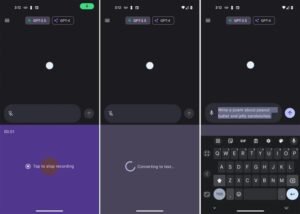
The Android app can provide voice interaction, allowing supported users to communicate with Chat GPT using spoken questions and responses. Voice availability and specific voice features can vary by account and current product availability, so users should check the latest Chat GPT information for their account.
Images and Visual Questions
Supported Chat GPT experiences can also work with images, allowing users to upload or share visual information and ask questions about it. This can be useful when you want help understanding a screenshot, analyzing an image, or discussing something that is easier to show than describe in words.
Writing and Brainstorming
Chat GPT can also be used as a writing assistant on Android. You can ask it to help draft messages, improve wording, generate ideas, explain text, or organize information. The quality of the result depends on the instructions and context you provide.
How to Use Chat GPT Voice on Android?
One of the convenient ways to interact with Chat GPT on a smartphone is through voice. Instead of typing every question, supported users can speak naturally to Chat GPT and receive a spoken response. This can make the app useful when you are walking, multitasking, practicing a language, or simply prefer talking instead of typing.
Start a Voice Conversation
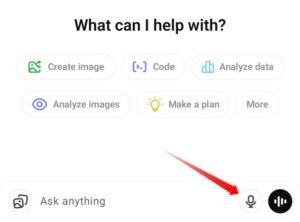
Open the Chat GPT Android app and look for the voice option in the chat interface. Tap the voice icon and allow microphone access if Android asks for permission. You can then speak your question and continue the conversation naturally. The exact voice interface and available options may change as Open AI updates the app.
Voice Conversations Can Be Useful For
Voice interaction can be useful for practicing conversations, asking quick questions, brainstorming ideas, learning new subjects, or getting help while your hands are busy. For important information, however, it is still a good idea to verify critical details using reliable sources rather than relying on an AI response alone.
Check Your App Version
If you do not see a particular voice option, make sure the Chat GPT app is updated through Google Play. Feature availability can also depend on your account and current Chat GPT product availability.
Using Images and Files in Chat GPT on Android
The Chat GPT Android app can also be useful when your question involves an image or supported file. Instead of describing everything in text, you can provide visual information and ask Chat GPT to explain, summarize, or help you understand it. The exact file and image capabilities available to you can depend on your Chat GPT plan and current product features.
Ask Questions About Images
You can use supported image features to ask questions about a photo, screenshot, diagram, or other visual content. For example, you might ask Chat GPT to explain what appears in a screenshot, help understand a chart, or identify information that is visible in an image.
Work With Supported Files
When file uploads are available for your account, you can provide supported documents or other files and ask Chat GPT to summarize, analyze, or extract useful information from them. This can be particularly helpful for students, professionals, and anyone who regularly works with digital documents.
Review Important Information Carefully
AI-generated responses can sometimes contain mistakes or misunderstand information from an image or file. For important business, financial, legal, medical, or other high-stakes information, verify the result against the original document or a reliable source.
Chat History and Search on Android
The Chat GPT Android app can keep your conversations available through your Chat GPT account, making it easier to return to previous discussions. This is useful when you are working on a project over several days or want to continue a conversation instead of starting from the beginning.
Continue Previous Conversations
After signing in to your account, you can access conversations that are available in your Chat GPT history. Opening an earlier conversation allows you to continue asking questions while keeping the previous conversation context available.
Find Information From Earlier Chats
When chat search is available on your account, it can help you locate previous conversations without manually scrolling through your entire history. This can be particularly useful if you regularly use Chat GPT for work, study, writing, or research.
Keep Your Account Secure
If you use Chat GPT on a shared or borrowed Android device, remember that your account may provide access to your conversations and other account information. Use your own account securely and avoid leaving your account signed in on devices that other people can access.
Chat GPT Free vs Paid Plans on Android
You can use the Chat GPT Android app with a free Chat GPT account, while paid plans provide additional features and higher access limits depending on the plan. The Android app itself is not a separate paid application; your Chat GPT account determines which features and usage limits are available to you.
Chat GPT Free on Android
The Free plan allows users to access Chat GPT from the Android app without purchasing a subscription. Free access can include several ChatGPT capabilities, although usage limits and available features may change over time. If you only need Chat GPT occasionally for questions, writing, learning, or everyday tasks, the free option can be a practical way to get started.
Paid ChatGPT Plans on Android
Paid ChatGPT plans can provide higher usage limits and access to additional capabilities, depending on the plan and current availability. If you use ChatGPT frequently for work, research, coding, writing, or other demanding tasks, compare the current plans and features before subscribing.
Do You Need to Pay to Download the Android App?
No. Downloading the official ChatGPT Android app from Google Play does not require you to purchase a paid subscription. You can install the app and use it with an available free account. A subscription is only needed if you want access to features or usage levels included in a paid ChatGPT plan.
Is the ChatGPT Android App Safe?
The official ChatGPT Android app is provided by OpenAI and is distributed through Google Play. When installing the app, users should verify that the publisher is listed as OpenAI and avoid unofficial applications that use similar names or branding. Downloading from the official Google Play listing is the simplest way to make sure you are getting the intended app.
Check the App Publisher
Before tapping Install, check the app’s publisher on Google Play. The official ChatGPT Android application is published by OpenAI. If an app uses the ChatGPT name but shows a different publisher, take a moment to verify it before installing.
Keep the App Updated
Keeping the ChatGPT app updated can give you access to the latest available features, bug fixes, and security improvements. Open Google Play regularly and check whether an update is available for the application.
Protect Your Account
Use a strong password and avoid sharing your ChatGPT account credentials with other people. Be careful when using ChatGPT on shared devices, and do not enter sensitive information into a conversation unless you understand how that information will be handled.
Common ChatGPT Android App Problems and Solutions
Although the ChatGPT Android app is designed to be straightforward to use, users may occasionally experience problems with installation, login, updates, or connectivity. Many common issues can be resolved by checking the app version, Google Play Store, internet connection, or Android settings.
ChatGPT Is Not Installing
If the app does not install, check that your Android device meets the current requirements and that you have enough available storage. Also make sure Google Play Store is working correctly and that your internet connection is stable. If an update is available for Google Play Store, installing it may also help.
Login Is Not Working
If you cannot sign in, first make sure you are using the correct ChatGPT account credentials. OpenAI also recommends keeping Google Play Store updated and having Google Chrome available as the default browser for Android login flows.
The App Is Not Responding
If ChatGPT becomes slow or stops responding, check your internet connection and make sure you are using the latest version of the app. You can also close and reopen the application. If the problem continues, checking OpenAI’s service status can help determine whether there is a wider service issue.
Features Are Missing
Not every ChatGPT feature is necessarily available to every user at the same time. Features can depend on your account, subscription, region, device, and product rollout. If a feature mentioned in an older article is missing from your app, check the latest information from OpenAI rather than assuming the app is malfunctioning.
Who Should Use the ChatGPT Android App?
The ChatGPT Android app can be useful for a wide range of Android users, from students and professionals to creators and people who simply want quick access to an AI assistant. Because the app works directly from a mobile device, you can use it without opening a desktop computer whenever you need help with a question or task.
Students and Learners
Students can use ChatGPT to understand difficult concepts, brainstorm ideas, practice writing, and ask follow-up questions while studying. It can be especially useful when you need an explanation in simpler language or want to explore a topic from different perspectives.
Professionals and Remote Workers
Professionals can use the Android app for drafting messages, organizing ideas, summarizing information, brainstorming, and getting assistance with everyday tasks. Having ChatGPT on a phone can be convenient when you are away from your computer.
Content Creators
Content creators can use ChatGPT to brainstorm video ideas, create outlines, improve writing, generate titles, and develop content concepts. The app can make it easier to capture an idea and continue working on it from almost anywhere.
Everyday Android Users
You do not need to be a developer or technology expert to use ChatGPT. Anyone who wants an AI assistant for questions, learning, writing, planning, or brainstorming can explore the Android app and decide whether it fits their daily needs.
Pros and Things to Consider
The ChatGPT Android app can be a convenient way to access ChatGPT from a mobile device, but it is still important to understand what it can and cannot do. Looking at both its advantages and practical considerations gives you a more realistic idea of whether the app fits your needs.
Advantages of the ChatGPT Android App
The main advantage is convenience. You can access ChatGPT directly from your Android phone without opening a desktop browser. The app can support text conversations and, where available, voice and image-based interactions. It can also be useful for learning, writing, brainstorming, research assistance, and everyday questions.
Things to Consider
ChatGPT can sometimes produce incorrect or incomplete information, so important information should be checked against reliable sources. Feature availability and usage limits can also change depending on your account, plan, region, and current product updates. Users should also be thoughtful about sharing sensitive or confidential information with an AI service.
Internet Connection and Updates
Because ChatGPT is an online service, a reliable internet connection is generally important for using the app. Keeping the Android application updated can also help ensure that you have access to the latest features and fixes available for your account.
Frequently Asked Questions (FAQs)
Does ChatGPT have an Android app?
Yes. OpenAI provides an official ChatGPT app for Android devices through the Google Play Store. When installing it, check that the publisher is listed as OpenAI.
Is the ChatGPT Android app free?
The official ChatGPT Android app can be downloaded and used with a free ChatGPT account. Paid plans are also available for users who need additional features or higher usage limits.
Where can I download ChatGPT for Android?
You can download the official ChatGPT Android app from the Google Play Store. Always check that OpenAI is listed as the publisher before installing the application.
Can I use ChatGPT on my Android phone without a computer?
Yes. Once the Android app is installed and you are signed in, you can use ChatGPT directly from your phone without needing a desktop computer.
Does ChatGPT Android support voice conversations?
ChatGPT supports voice conversations on supported accounts and devices. The available voice features can vary depending on your account, plan, and current product availability.
Can I upload images to ChatGPT on Android?
Supported ChatGPT experiences allow users to work with images. Depending on your account and available features, you may be able to upload an image and ask ChatGPT questions about its contents.
Conclusion
Yes, ChatGPT has an official Android app that gives users a convenient way to access ChatGPT from their phones and tablets. You can download it through Google Play, sign in with your ChatGPT account, and use the features available for your account and plan.
Whether you want help with writing, learning, brainstorming, everyday questions, or supported voice and image interactions, the Android app makes ChatGPT accessible without needing to sit at a computer. However, features and usage limits can change over time, so checking OpenAI’s official information is the best way to confirm what is currently available.
If you are new to Chat GPT, starting with the free Android experience is a simple way to explore what it can do. Just make sure you download the official application published by OpenAI and keep the app updated.
For more: click here