Capcut Android App: Features, Video Editing, and How to Use It
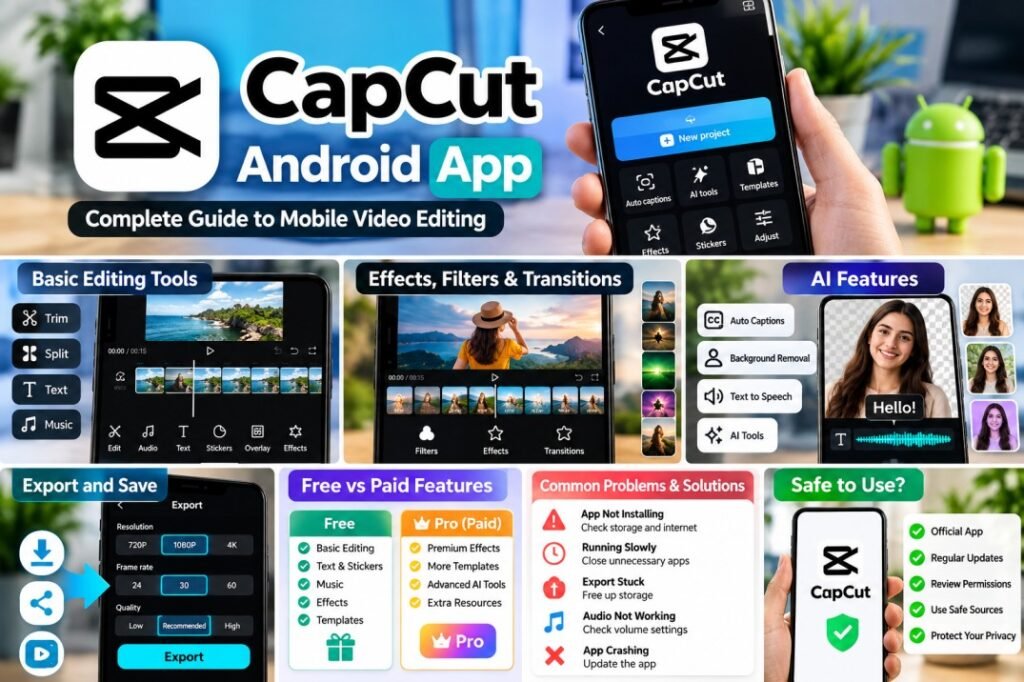
Creating engaging videos on Android does not always require expensive editing software or a computer. The CapCut Android app provides a range of video editing tools that can help beginners and content creators trim clips, add music, apply effects, create captions, adjust video speed, and enhance videos directly from a smartphone.
CapCut is available on Google Play and currently has more than 1 billion downloads. Its Android version includes basic editing tools as well as features such as keyframe animation, slow-motion editing, chroma key, stabilization, auto captions, text-to-speech, motion tracking, and background removal.
In this guide, we will explore the main Cap-Cut Android app features, explain how to edit a video step by step, and show how beginners can create and export videos using their Android phone.
What Is the Cap cut Android App?
The Cap Cut Android app is a mobile video editing application designed for creating and editing videos directly on an Android smartphone. It combines basic editing tools with more advanced features, making it suitable for beginners, social media creators, and users who want to edit videos without using desktop software.
With Cap Cut, users can import videos and photos from their phone, arrange clips on a timeline, trim unwanted sections, split videos, add transitions, insert text, apply filters and effects, and add music or other audio. The app also includes tools for features such as automatic captions, background removal, motion tracking, and speed adjustments.
One of the main advantages of using CapCut on Android is the convenience of editing videos from almost anywhere. Instead of transferring footage to a computer, users can record a video on their phone and start editing it immediately.
The app supports different types of content, including short social media videos, tutorials, personal videos, promotional clips, and other creative projects. Some features and availability may vary by version, region, device, or account.
How to Download Cap Cut on Android?
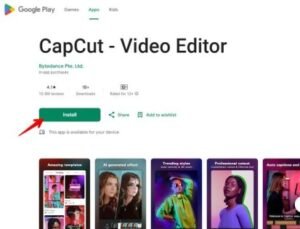
If you want to use the Cap Cut Android app, the safest approach is to download it from the official Google Play Store. Using the official listing helps you avoid modified or potentially unsafe APK files from unknown websites.
Follow these steps to download CapCut on an Android phone:
- Open the Google Play Store on your Android device.
- Search for CapCut using the search bar.
- Check the app name and publisher before installing it.
- Tap Install to begin the download.
- Wait for the installation to complete.
- Tap Open to launch CapCut.
- Follow the on-screen instructions to start using the video editor.
CapCut’s official Google Play listing provides the current app version and installation options. The available features and requirements can change as the app receives updates.
Is CapCut Free to Download?
CapCut can be downloaded from Google Play, but some features or content may require in-app purchases or a paid subscription. The exact availability of free and paid features can change with app updates and region.
CapCut Android App Features
The CapCut Android app includes a wide range of tools for editing videos directly on a smartphone. Its interface is designed to let users combine multiple editing functions in one project, from basic trimming to effects, captions, audio, and more advanced editing features.
Trim and Split Videos
CapCut lets you trim unwanted parts from the beginning or end of a clip and split a video into separate sections. This makes it easier to remove mistakes, shorten footage, or rearrange different parts of a project.
Add Music and Audio
Users can add music, sound effects, voice recordings, and other audio elements to their videos. Audio can be adjusted and positioned on the timeline to match specific parts of the video.
Text and Auto Captions
Text overlays can be added to videos for titles, explanations, or other information. CapCut also provides automatic caption tools that can help generate subtitles from spoken audio, although results may need to be reviewed and corrected.
Filters, Effects, and Transitions
The app includes visual effects, filters, and transitions that can be used to change the appearance of clips or create smoother movement between scenes. These tools can be useful for short-form videos and other creative projects.
Speed Control and Slow Motion
CapCut provides speed controls that allow users to make clips faster or slower. Slow-motion effects can be useful for highlighting specific moments, while speed adjustments can help match video clips with music or narration.
Background Removal and Chroma Key
For supported editing workflows, CapCut provides tools for removing backgrounds and working with chroma key footage. These features can help users place a subject over another background or create layered video compositions.
Keyframe Animation and Motion Tracking
More advanced users can use keyframes to control changes in a video over time. Motion tracking can also help follow moving subjects or objects within a clip, depending on the feature and current app version.
Video Stabilization
Stabilization tools can help reduce unwanted camera movement in compatible footage. This can be useful when a video was recorded while walking or without a tripod.
How to Edit a Video in Cap Cut on Android

Learning how to use CapCut on Android is relatively simple, even if you have never used a mobile video editor before. The basic workflow involves importing your footage, arranging clips, making edits, adding audio and effects, and exporting the finished video.
Start a New Project
Open CapCut on your Android phone and select the option to create a new project. Choose the videos or photos you want to include from your device’s media library and add them to the editing timeline.
Arrange and Trim Your Clips
Once your media appears on the timeline, tap a clip to access its editing options. You can move clips into a different order, trim unwanted sections, or split a longer clip into smaller segments.
Add Text and Captions
Use the text tools to add titles, labels, or other information to your video. If your version of CapCut supports automatic captions, you can generate subtitles from speech and then review the text for accuracy.
Add Music or Voiceover
Select the audio tools to add background music, sound effects, or a voiceover. Adjust the volume of different audio tracks so that music does not overpower spoken content.
Apply Effects and Transitions
You can add transitions between clips and use filters or visual effects to change the style of your video. It is generally better to use effects where they support the content rather than applying too many effects at once.
Adjust Video Speed
Select a clip and use the speed controls when you want to create a faster or slower section. Speed changes can be useful for tutorials, travel videos, action footage, and short-form content.
Preview the Finished Video
Before exporting, play the entire project from beginning to end. Check the timing, captions, audio levels, transitions, and any visual effects. This gives you a chance to correct mistakes before creating the final video.
Export the Video
When your project is ready, use the export option to create the finished video. Available resolution, frame-rate, and other export settings can depend on the current app version, device, project, and account.
CapCut Video Editing Tools for Android
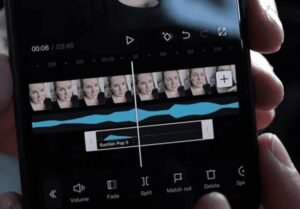
The CapCut Android app offers more than basic trimming and cutting. Depending on the current version, users can access tools for audio, text, effects, animation, captions, background editing, and other creative tasks. These features allow Android users to build complete video projects without switching to a desktop editor.
Timeline Editing
The timeline is the main workspace where you can arrange video clips, photos, audio, text, and other elements. You can move items, shorten clips, split footage, and adjust the timing of individual elements.
Overlay and Layer Editing
Overlay tools allow you to place additional videos, images, or other elements on top of the main footage. This can be useful for creating reaction videos, tutorials, picture-in-picture layouts, and branded content.
Keyframe Animation
Keyframes can be used to control changes in an element over time. For example, you can create movement by changing the position, scale, or other supported properties between different points on the timeline.
Audio Editing
Audio tools allow you to combine background music, sound effects, and voice recordings with your video. You can adjust the timing and volume of audio tracks to create a more balanced final result.
Text-to-Speech
CapCut also provides text-to-speech functionality in supported versions. This can turn written text into generated narration, which may be useful for tutorials, explainers, and short-form videos.
Background Removal
Background removal can separate a subject from its original background in supported projects. This makes it possible to place the subject over another image, video, or designed background.
Video Stabilization
Stabilization can help reduce unwanted camera movement in compatible footage. It can be particularly useful when recording handheld videos without a tripod.
How to Add Music, Text, Effects & Transitions in CapCut
One of the reasons the CapCut Android app is useful for mobile video editing is that it lets you combine video, audio, text, and visual effects within the same project. These tools can help turn simple footage into a more polished video.
Add Music to a Video
Open your project and select the audio option. You can add available music or other audio to the timeline and adjust its position and volume. When using music for content that will be published online, make sure you have the appropriate rights to use it.
Add Text to Your Video
Select the text tool to add titles, captions, labels, or other information. You can usually adjust the text style, size, position, and timing so that it appears at the right moment in your video.
Add Video Effects
CapCut provides different visual effects that can be applied to video clips. Effects can be useful for emphasizing a particular scene or creating a specific visual style. Preview an effect before applying it to make sure it works well with your footage.
Add Transitions Between Clips
Transitions can be placed between two video clips to create a smoother change from one scene to another. Simple transitions are often useful when creating tutorials, travel videos, presentations, or short-form content.
Adjust Filters and Video Appearance
Filters and adjustment controls can change the overall appearance of your footage. Depending on the available tools, you may be able to adjust properties such as brightness, contrast, saturation, or other visual settings.
Preview Before Exporting
After adding music, text, effects, and transitions, play the project from the beginning. Check whether the text is readable, the music is at an appropriate volume, and the transitions occur at the correct points.
How to Use CapCut Templates on Android
Templates can make video creation faster by providing a pre-designed editing structure. Instead of creating every transition, effect, and timing adjustment manually, users can start with an available template and replace its media with their own photos or video clips.
Find a Template
Open the CapCut Android app and look for the available template section. Browse through the templates and choose one that matches the type of video you want to create.
Select Your Photos or Videos
After selecting a template, follow the on-screen instructions to add the required photos or video clips from your Android device. The template determines how the selected media is arranged within the project.
Preview the Template
Preview the result before exporting. Check the timing, text, music, and visual effects to make sure everything looks appropriate.
Customize the Video
If the selected template allows customization, you can make changes to supported elements such as text, clips, or other editing options. The amount of customization can vary from one template to another.
Export the Finished Video
Once you are satisfied with the result, use the export option to create the final video. Available export settings may vary depending on the project and current version of the app.
How to Add Auto Captions in CapCut Android App
Auto captions can save time when you need to add subtitles to spoken content. The CapCut Android app can generate captions from speech in supported versions, which can be useful for tutorials, interviews, short videos, and social media content.
Create Auto Captions
Open your video project in CapCut and look for the Text or Captions option. Select the automatic caption feature and choose the appropriate language if the option is available. CapCut will process the video’s speech and generate captions based on the audio.
Review and Correct the Captions
Automatic transcription is not always perfect. After the captions are generated, watch the video and check names, numbers, technical terms, and other words carefully. Correct any mistakes before exporting the final video.
Customize Caption Style
Depending on the available options, you can adjust the appearance of captions by changing their font, size, position, animation, or other supported styling options. Keep captions easy to read and make sure they do not cover important parts of the video.
Why Auto Captions Are Useful
Captions can make spoken videos easier to follow, especially when viewers are watching without sound. They can also help explain dialogue or narration clearly in tutorials, educational videos, and short-form content.
How to Remove Background in CapCut on Android
Background removal is a useful feature for creators who want to separate a person or object from the original background. The CapCut Android app provides background removal tools in supported versions, allowing users to create different visual compositions without needing a separate desktop editor.
Import Your Video
Open CapCut and create a new project. Select the video containing the person or object you want to separate from its background and add it to the timeline.
Select the Background Removal Tool
Tap the video clip and look through the available editing options for the background removal or cutout feature. Depending on your version of CapCut, the exact name and location of the option may be different.
Let CapCut Process the Video
After selecting the appropriate tool, CapCut processes the footage and attempts to separate the main subject from the background. Processing time can depend on the length and resolution of the video and your Android device.
Add a New Background
Once the original background has been removed, you can place another image or video behind the subject when the editing workflow supports layers or overlays. This can be useful for presentations, social media videos, tutorials, and creative projects.
Check the Edges
Carefully preview the result around the subject’s hair, hands, clothing, and other fine details. Automatic background removal may not produce perfect results in every video, especially when the subject and background have similar colors or the footage has significant motion.
How to Export and Save Videos in CapCut on Android
After finishing your edits, the final step is to export the project as a video file. The CapCut Android app provides export options that allow you to save the finished video to your device and then use it on supported platforms.
Preview Your Project Before Exporting
Before tapping the export button, watch the complete video from beginning to end. Check the cuts, captions, audio, transitions, effects, and overall timing. Fix any mistakes before creating the final file.
Choose Export Settings
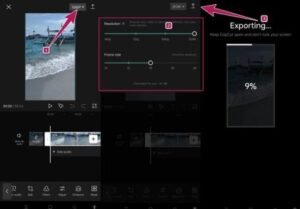
Tap the export option and review the available video settings. Depending on your current version of CapCut, device, and project, you may be able to adjust options such as resolution and frame rate.
Export the Video
After selecting the appropriate settings, start the export process. Processing time can vary depending on the video’s length, resolution, effects, and your Android device’s performance.
Find the Saved Video
Once the export is complete, the finished video can generally be accessed through your device’s gallery or media library. You can then review the exported file before uploading or sharing it.
What Export Quality Should You Choose?
The appropriate export quality depends on where you plan to use the video. Higher resolution can provide more detail but may also create a larger file. For social media, choose settings that match the platform’s recommended specifications rather than automatically selecting the highest available quality.
Cap Cut Android App: AI Features and Smart Editing Tools
The CapCut Android app also includes AI-powered and smart editing features in supported versions. These tools are designed to automate some editing tasks that would otherwise require more manual work. Feature availability can vary depending on the app version, region, device, and account.
AI-Powered Editing
AI-based tools can help with tasks such as generating captions, removing backgrounds, improving certain parts of a video, and creating or modifying content. These features can be particularly useful when you want to speed up the editing process.
AI Background Removal
AI-assisted cutout tools can detect the main subject and separate it from the background. This can make it easier to create videos with custom backgrounds without manually drawing around the subject frame by frame.
Text-to-Speech
Text-to-speech can convert written text into generated narration in supported versions. This can be useful for explainers, tutorials, informational videos, and other content where you want narration without recording your own voice.
AI Tools and Privacy
Before using any AI-powered feature, review the permissions and terms presented by the app. Avoid uploading private, confidential, or sensitive footage unless you understand how the relevant feature handles your content.
CapCut Android App Free vs Paid Features
The CapCut Android app can be downloaded and used without necessarily paying for every editing feature. However, CapCut also offers additional features, content, and editing resources that may require payment or a subscription. The exact difference between free and paid access can change over time.
What Can You Do With the Free Version?
Depending on the current version and region, users can perform common editing tasks such as trimming and splitting clips, adding text, adjusting video speed, working with audio, and using available effects and transitions.
What Does Paid Access Offer?
Paid access may provide additional premium effects, templates, creative assets, AI-powered tools, or other advanced resources. The exact benefits depend on the current CapCut subscription and the user’s region.
Common Cap Cut Android App Problems and Solutions
Although the CapCut Android app is designed for mobile video editing, users may sometimes experience problems while downloading, editing, or exporting videos. Many common issues can be related to storage, internet connectivity, app updates, or device performance.
CapCut Is Not Installing
If CapCut does not install, check your internet connection and make sure your Android device has enough available storage. You should also check whether your device meets the current requirements shown on the Google Play Store.
CapCut Is Running Slowly
Large projects, high-resolution footage, multiple effects, and limited device resources can affect editing performance. Closing unnecessary apps and freeing up storage may help improve the editing experience.
Video Export Is Stuck
If an export remains stuck, check your available storage and try closing other apps before exporting again. For a large project, reducing the project complexity or export settings may also help.
Is CapCut Safe to Use on Android?
The CapCut Android app is distributed through the official Google Play Store, where users can review the app information, permissions, developer details, and current updates before installing it. For security, it is generally better to install CapCut through its official app listing rather than downloading modified APK files from unknown websites.
Like any video editing application, CapCut may require access to certain device features or media when you use functions such as importing photos, videos, recording audio, or saving finished projects. The permissions presented to you can depend on your Android version and the features you choose to use.
Before using the app, review its current privacy information and the permissions requested by your device. Avoid uploading sensitive or confidential footage unless you are comfortable with how the relevant feature handles that content.
App features, permissions, privacy practices, and terms can change over time, so users should check the current information provided by CapCut and Google Play before installing or using the application.
CapCut Android App FAQs
Is CapCut available for Android?
Yes. CapCut is available for Android through the Google Play Store. Users can download the app and edit videos directly on compatible Android devices.
Is CapCut free on Android?
CapCut can be downloaded and used for video editing, but some features, templates, effects, or other resources may require payment or a subscription. The available free and paid features can change over time.
Can I edit videos on CapCut without a computer?
Yes. The CapCut Android app is designed for mobile video editing, so you can import footage, trim clips, add text and audio, apply effects, and export videos directly from an Android phone.
Can CapCut automatically add captions?
Yes, automatic caption functionality is available in supported versions. However, automatically generated captions should be reviewed because transcription errors can occur.
Can CapCut remove a video background?
CapCut provides background-removal and cutout tools in supported versions. Results can vary depending on the quality of the footage, subject, lighting, and background.
Conclusion
The CapCut Android app provides a convenient way to edit videos directly from a smartphone. From basic tools such as trimming and splitting clips to features such as captions, transitions, effects, speed controls, background removal, and keyframe animation, it offers a wide range of options for different types of video projects.
Beginners can start with simple edits and gradually explore more advanced tools as they become familiar with the timeline and editing workflow. Templates and automated features can also help reduce the time required for certain editing tasks.
If you are looking for a mobile video editor, the best approach is to explore the features currently available on your Android device and choose the tools that match your editing needs. Because CapCut’s features, pricing, and availability can change, check the latest information in the official app listing before downloading or subscribing.
For more:: Click here